Guides › CloudBridge
Guide · CloudBridge · 3 min read
Download files from your SFTP server on Mac
When the file you need lives on a VPS or NAS, a short browse-and-download workflow can be easier than remembering its full remote path.
Connect to a server you control
In CloudBridge, add the server address, port, username, and password for an SSH/SFTP server you are authorized to use. Confirm the host identity carefully on first connection. CloudBridge connects directly to that server without a CloudBridge account or hosted relay.
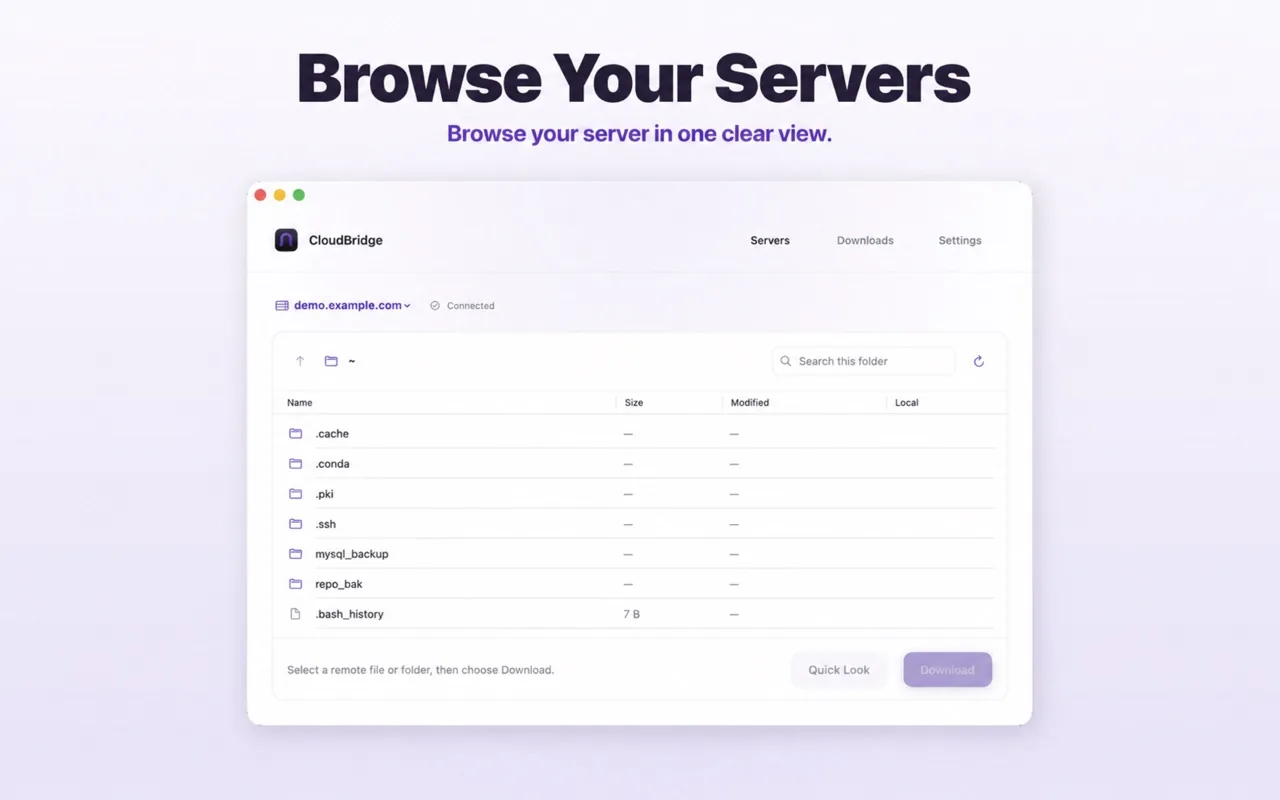
Connect to a server you control Find and inspect the right file
Browse the remote folders or search within the current directory. For a supported file, use Quick Look to inspect it before downloading. Preview support depends on the file type and macOS preview capabilities.
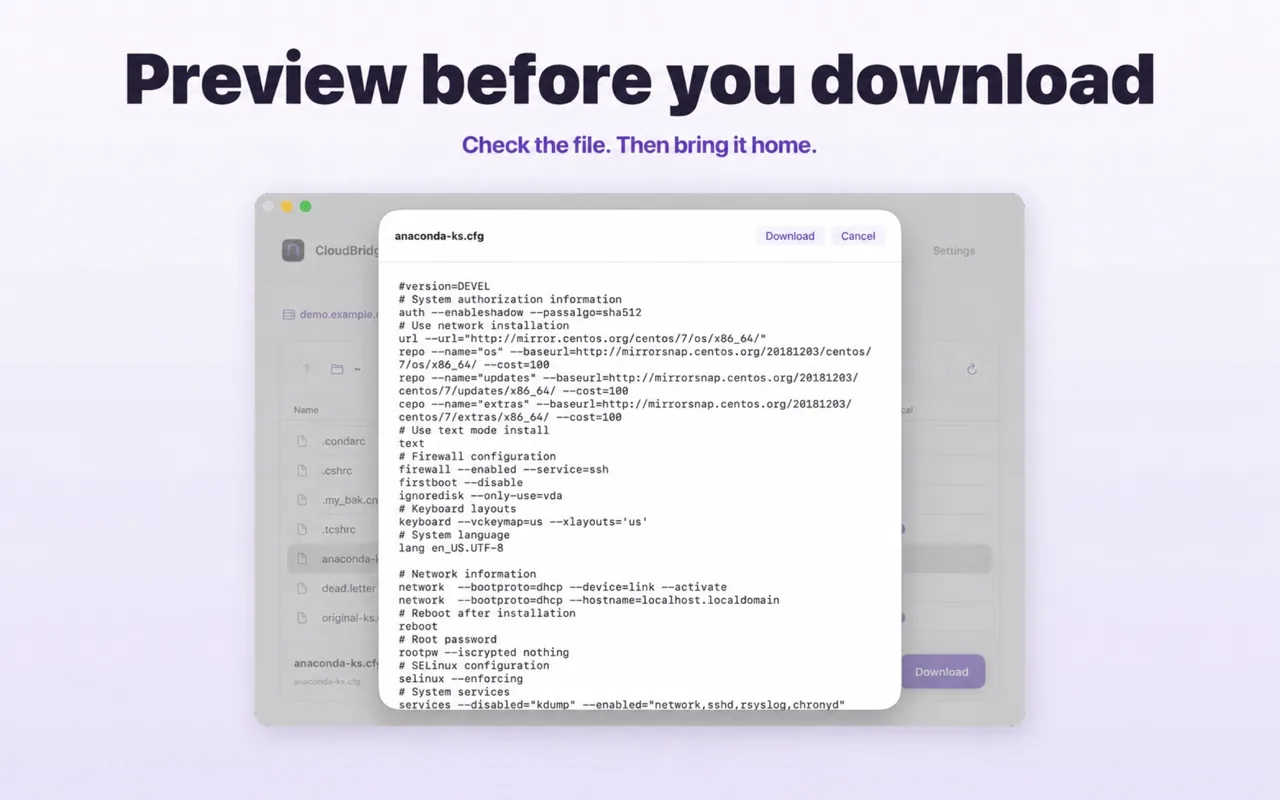
Find and inspect the right file Download and verify
- Choose a file or folder, then start the download to your selected local directory.
- Use the download list to follow progress or pause, resume, cancel, or retry as needed.
- Reveal a completed download in Finder and check that it is the version you wanted.
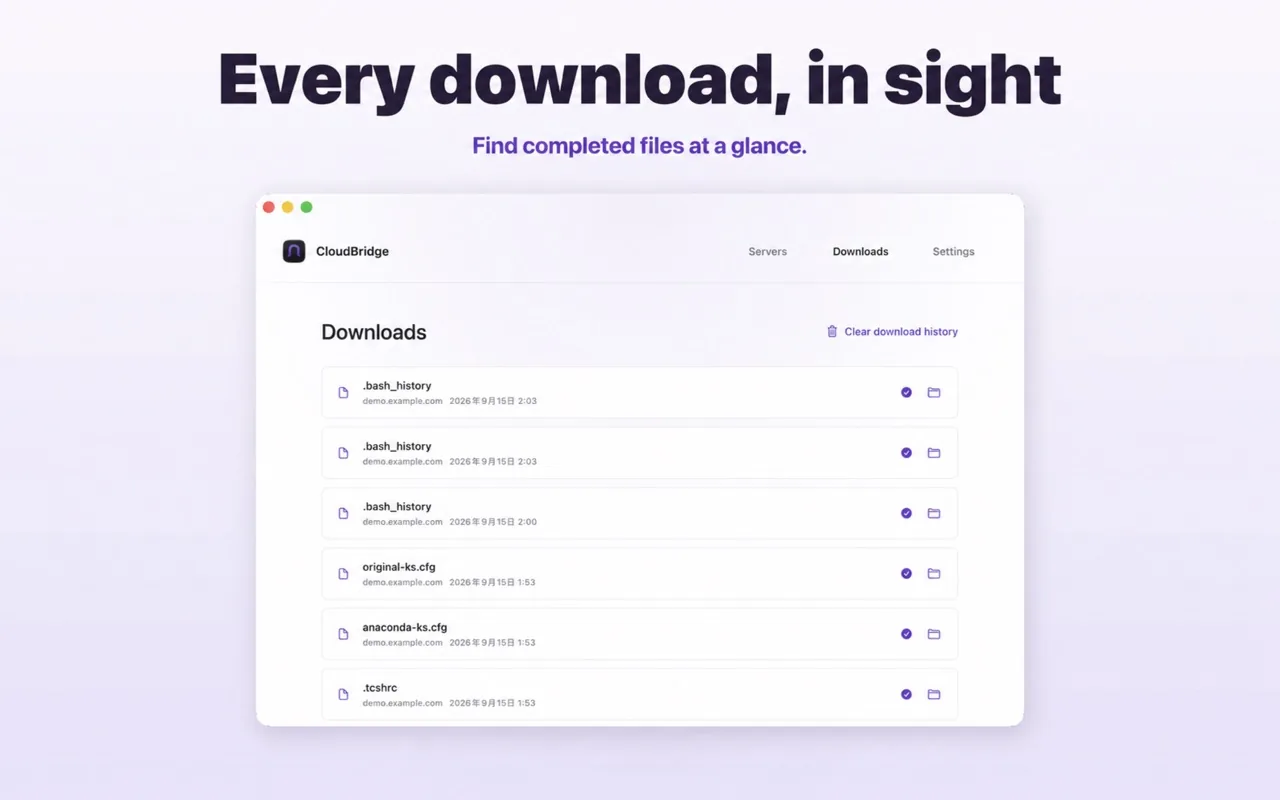
Download and verify
Frequently asked questions
Do I need a CloudBridge account?
No. CloudBridge connects to servers that you provide and control.
Where are passwords stored?
Saved server passwords are stored securely in macOS Keychain and are retrieved locally when CloudBridge connects to that server. The password is sent only to that server through SSH.
Why do folders show size as “-”?
Remote directory sizes can be misleading on SFTP servers, so CloudBridge shows “-” for folders instead of a fixed placeholder size.

Try CloudBridge: SFTP Transfer
A Mac SFTP client for remote browsing, Quick Look previews, and file or folder downloads.


Updated October 2026.